
PayTabs Payment Gateway
PayTabs Payment Gateway
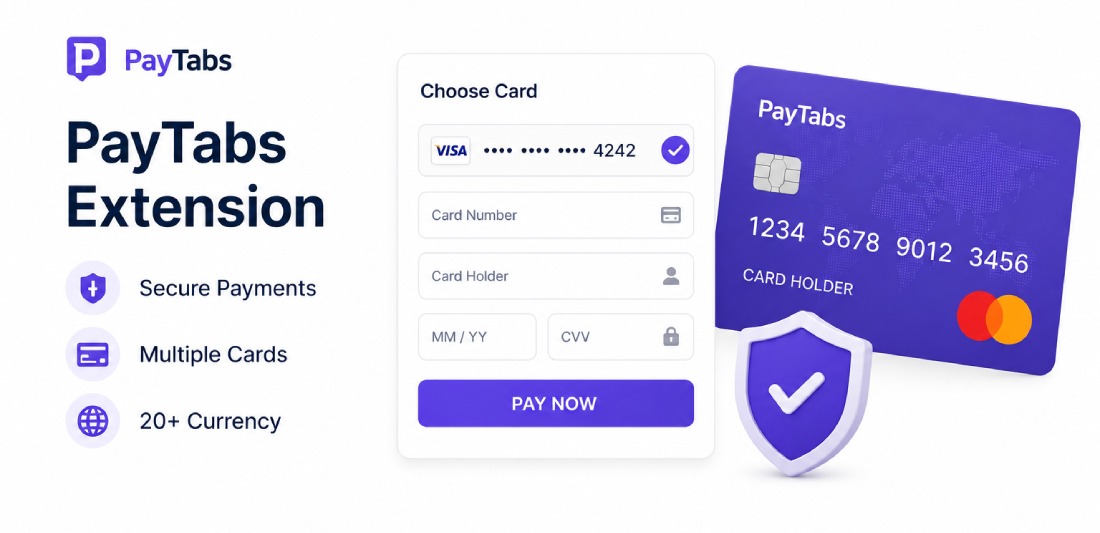
The official PayTabs payment gateway for Magento 2 — accept 20+ payment methods across the full GCC and MENA region including Credit Card, mada, STCPay, Apple Pay, KNET, Tabby, Tamara, valU and more. Built with Hyvä theme support included.
✔ Fully compatible with Hyvä Theme — dedicated checkout component included
✔ Supports Magento 2.4.4 to 2.4.8
✔ 20+ payment methods: Credit Card, mada, STCPay, Apple Pay, KNET, OmanNet, Meeza, Tabby, Tamara, valU, PayPal and more
✔ Multi-region endpoints: UAE, Saudi Arabia, Kuwait, Oman, Egypt and more
✔ Full and partial refunds from Magento admin
✔ Vault (tokenization) support for returning customers
✔ Iframe mode for seamless on-site payment experience
✔ IPN callback support for real-time order status updates
✔ PCI DSS Level 1 certified — bank-grade security
✔ Install in minutes via Composer or FTP
Feature Highlights
Everything You Need to Convert More
Explore product capabilities in detail.
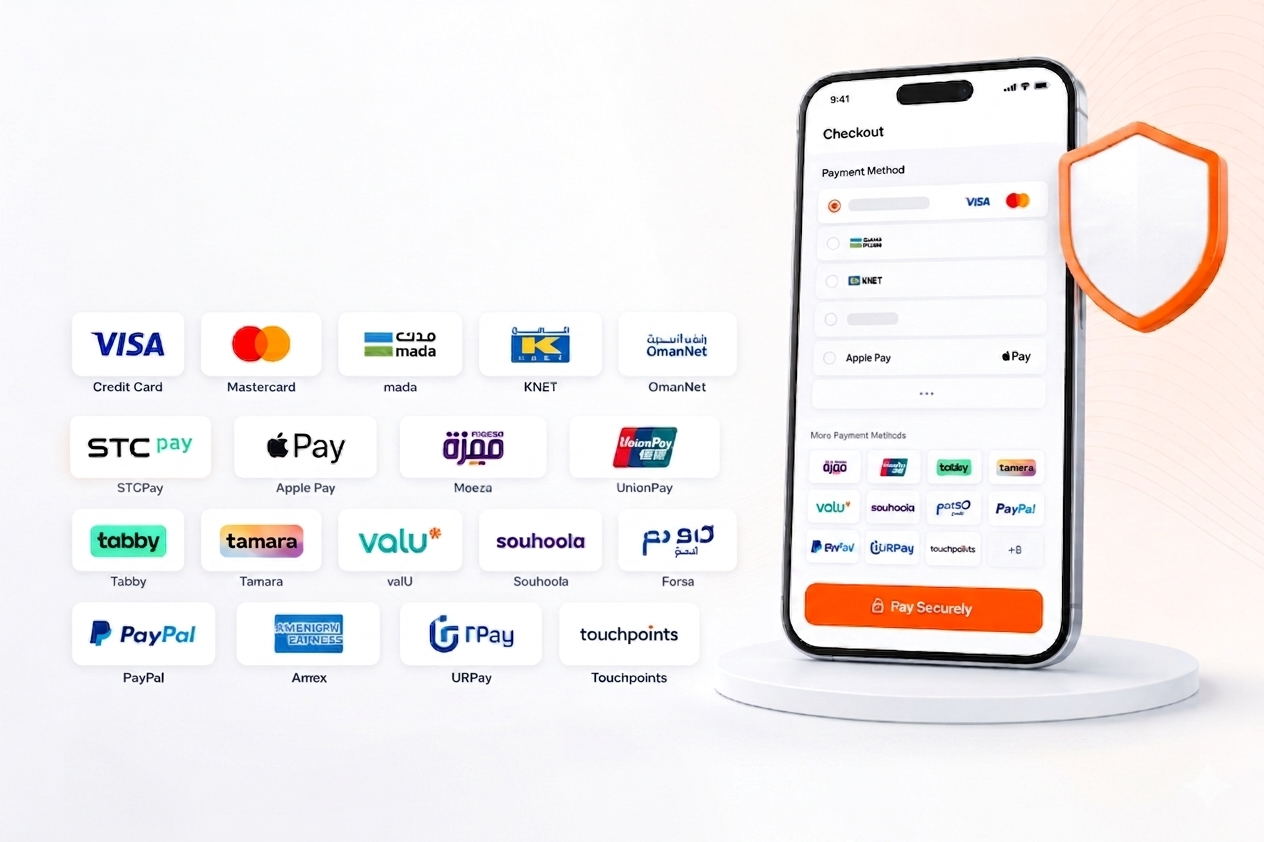
20+ Payment Methods for MENA
Accept all major payment methods across the GCC and MENA region — from credit cards to BNPL, wallets, and local schemes.
- Credit Card, mada, KNET, OmanNet
- STCPay, Apple Pay, Meeza, UnionPay
- Tabby & Tamara (Buy Now Pay Later)
- valU, Souhoola, Forsa installments
- PayPal, Amex, URPay, Touchpoints
Built-in Hyvä Theme Compatibility
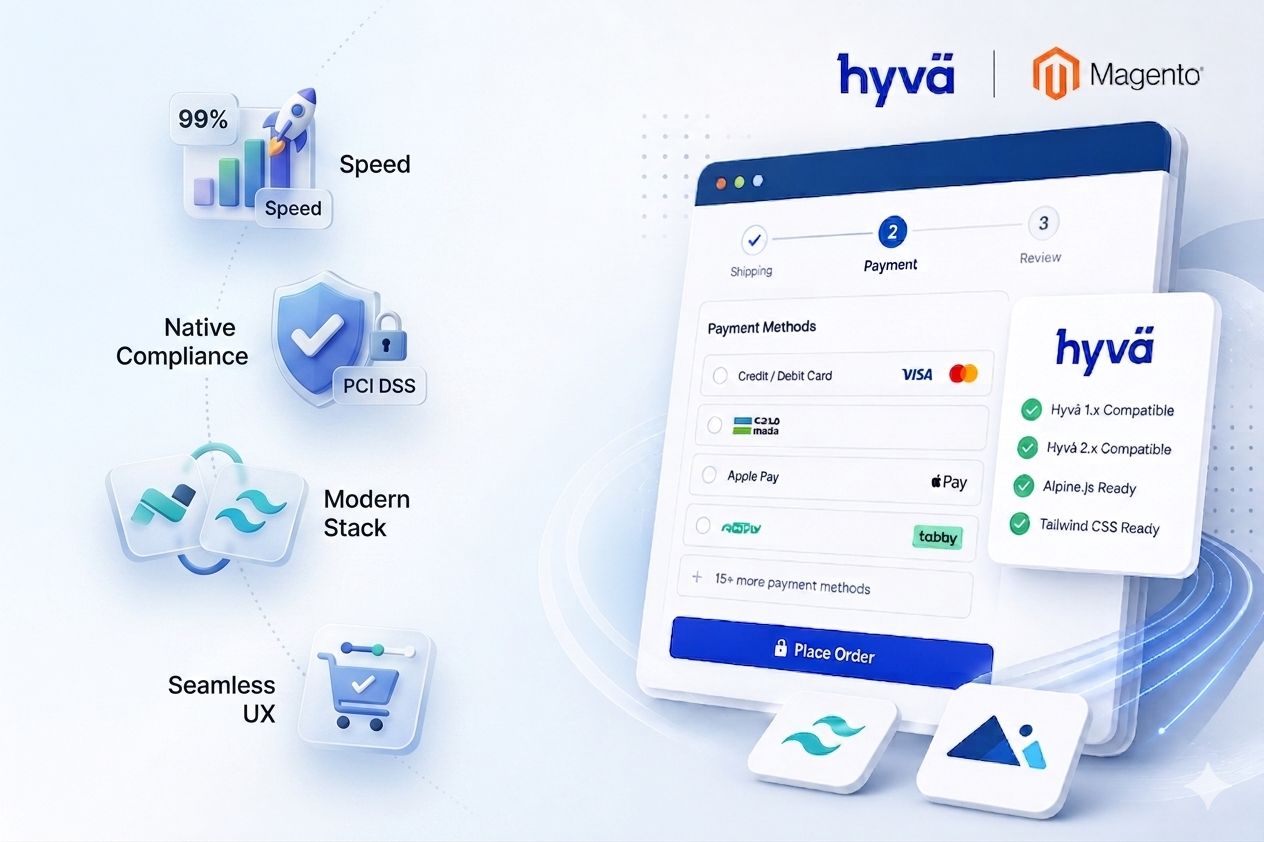
The module ships with a dedicated Hyvä checkout component — no patches, no workarounds, just install and go.
- Dedicated hyva_checkout_components.xml
- Alpine.js and Tailwind compatible
- Tested on Hyvä 1.x and 2.x
- Works with Hyvä Checkout module
- No Luma fallback required
Bank-Grade Security & Compliance
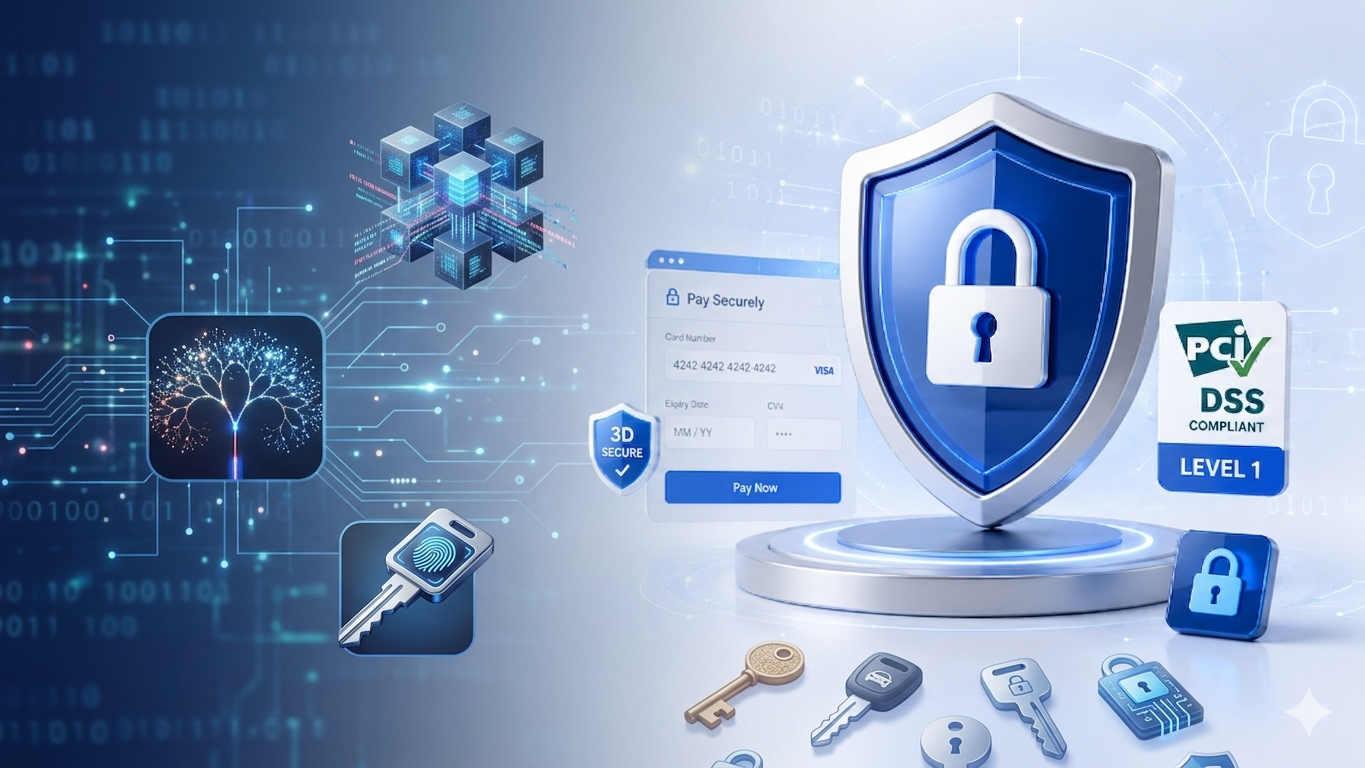
PayTabs is a fully PCI DSS Level 1 certified payment gateway, ensuring the highest level of security for every transaction.
- PCI DSS Level 1 certified
- 3D Secure authentication
- Fraud detection & prevention
- Tokenization via Magento Vault
- Iframe mode for on-site payments
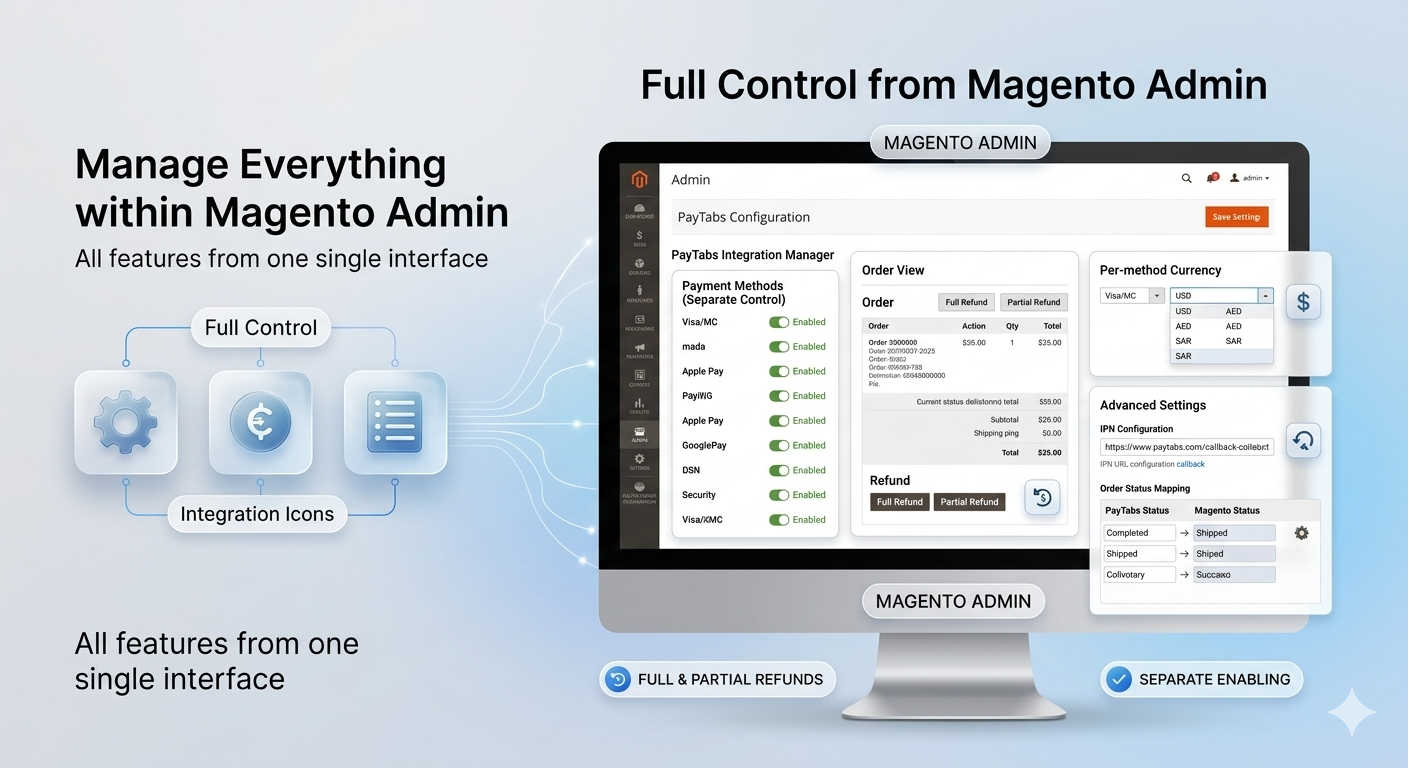
Full Control From Magento Admin
Manage every aspect of PayTabs from within your Magento backend — no need to log into a separate portal for daily operations.
- Enable/disable each payment method separately
- Full & partial refunds from order view
- Per-method currency selection
- IPN callback configuration
- Order status mapping per method
Install in Minutes via Composer or FTP
Get PayTabs running on your Magento store in under 5 minutes using Composer or a simple FTP upload — no coding required.
- composer require paytabs/magento2
- Or upload to app/code/PayTabs/PayPage
- Run setup:upgrade and cache:clean
- Configure Profile ID and Server Key
- Enable preferred payment methods

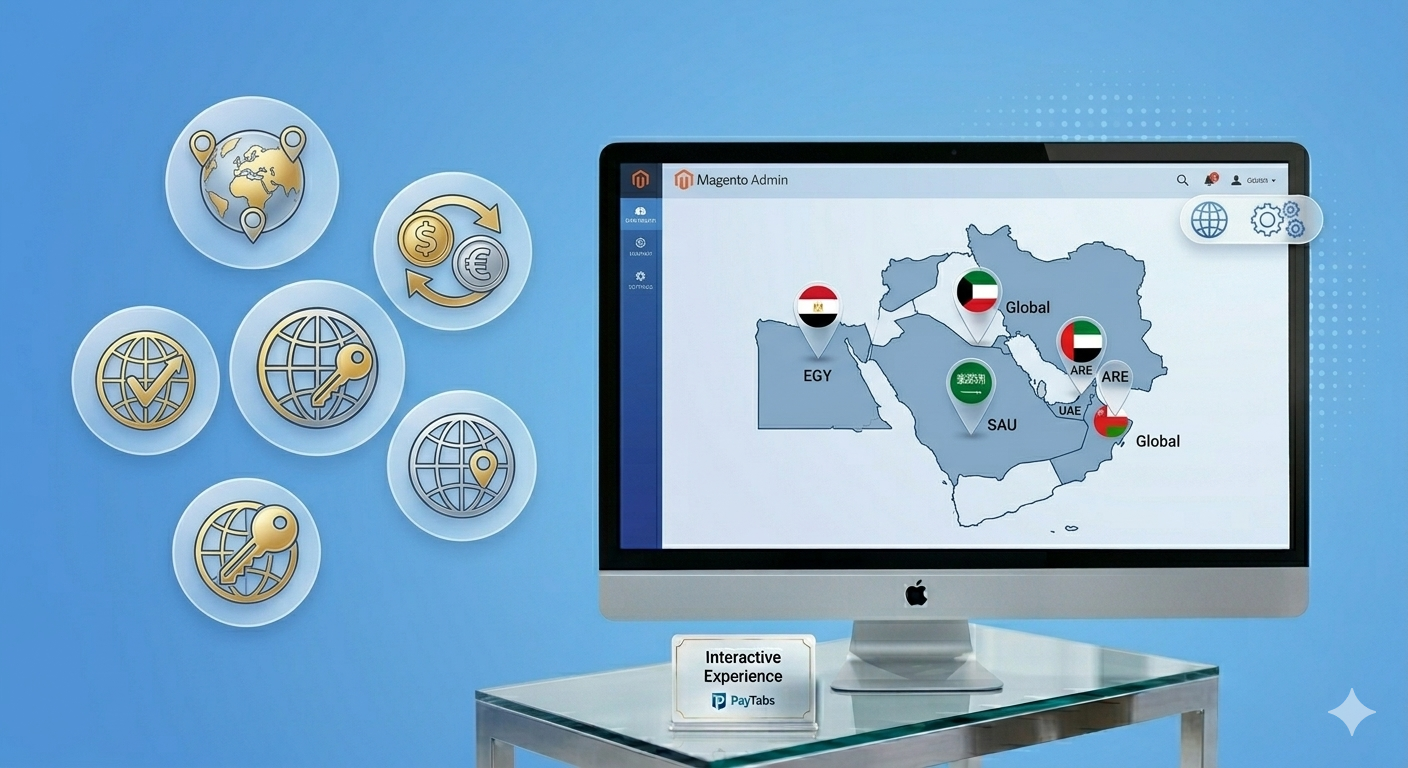
Serve Customers Across the Entire MENA Region
Choose the correct PayTabs endpoint for your country to ensure compliance with local payment regulations and best performance.
- UAE endpoint (ARE)
- Saudi Arabia endpoint (SAU)
- Kuwait / Global endpoint
- Oman endpoint (OMN)
- Egypt endpoint (EGY)
Complete PayTabs Magento Configuration
Configure PayTabs directly from Magento Admin with complete control over mandatory setup, checkout behavior, currency, IPN notifications, order statuses, payment actions, tokenization and advanced features.
Navigate to Configuration
From your Magento Admin panel, navigate to the Stores menu, then select the Configuration menu item.
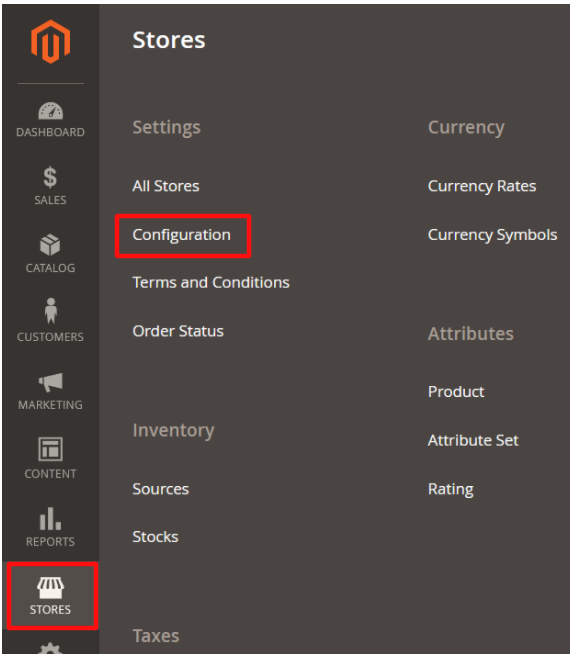
- Open Magento Admin panel
- Go to the Stores menu
- Select Configuration
Open Payment Methods
In the Configuration page, from the Sales tab, select the Payment Methods menu item.
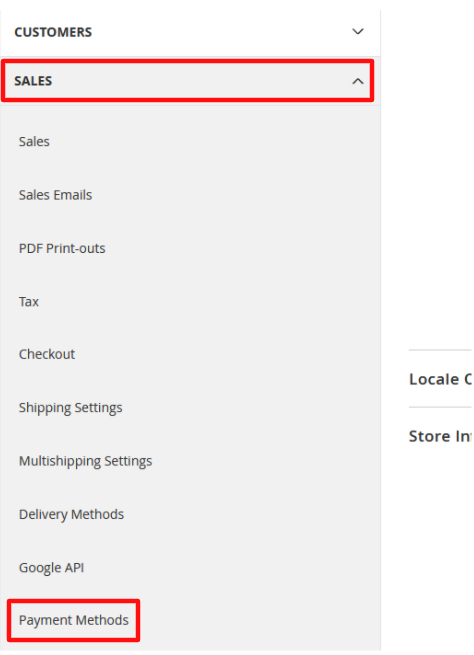
- Open the Sales tab
- Select Payment Methods
Expand Your Payment Method
Expand your preferred payment method from the list of PayTabs supported payment methods.
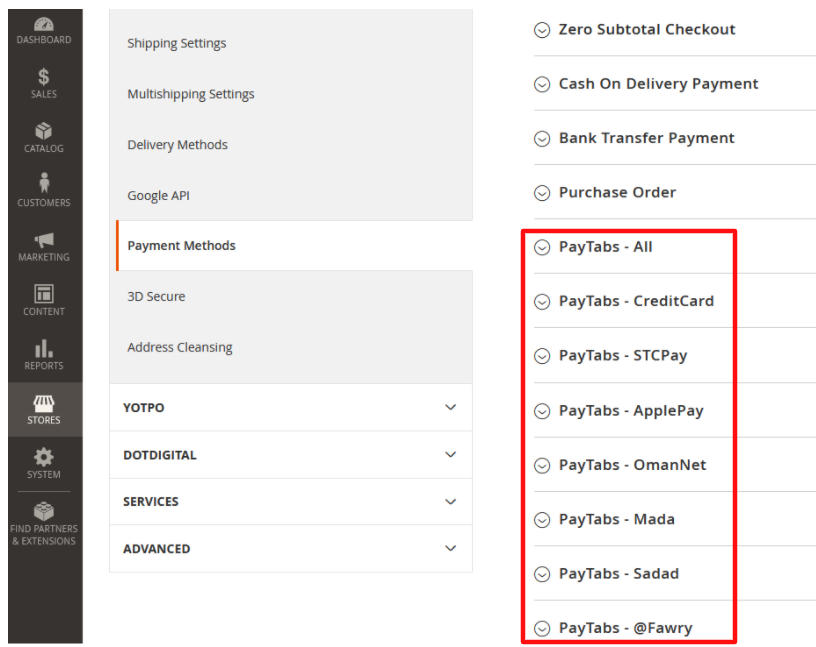
- Locate PayTabs in the supported payment methods list
- Click to expand your preferred payment method
Set the Mandatory Fields
Set the highlighted configuration options — these are the mandatory fields needed to start accepting payments via PayTabs.
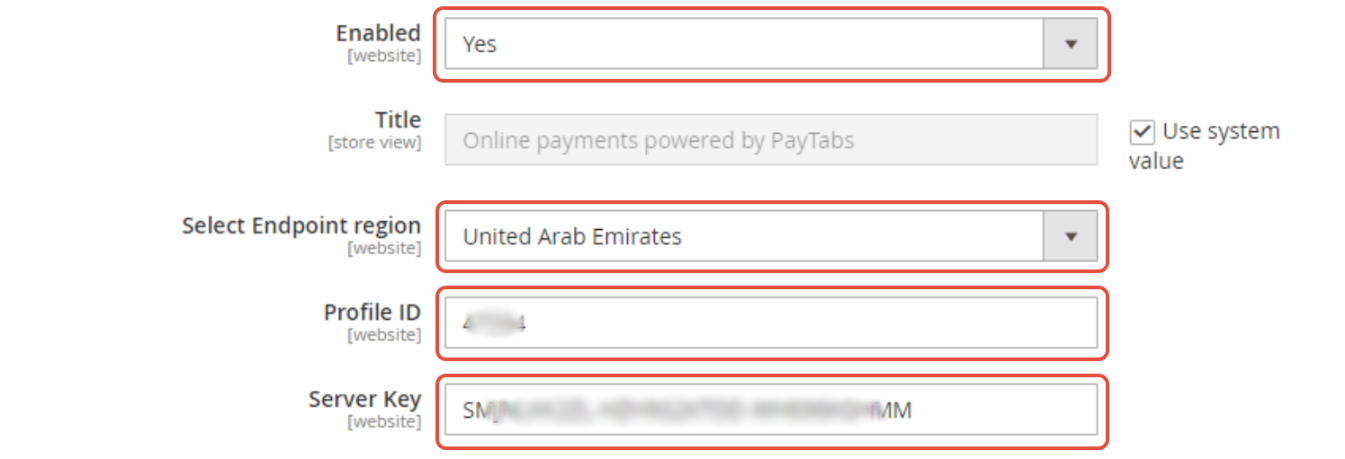
- Enable the payment method — Yes shows it on checkout, No hides it
- Select the Endpoint Region matching your PayTabs merchant account
- Enter your Profile ID from the PT2 Dashboard
- Enter your Server Key — the active Standard server key from your API keys
Checkout Page Preview
Once enabled and configured correctly, the payment method will appear on your website's checkout page for customers.
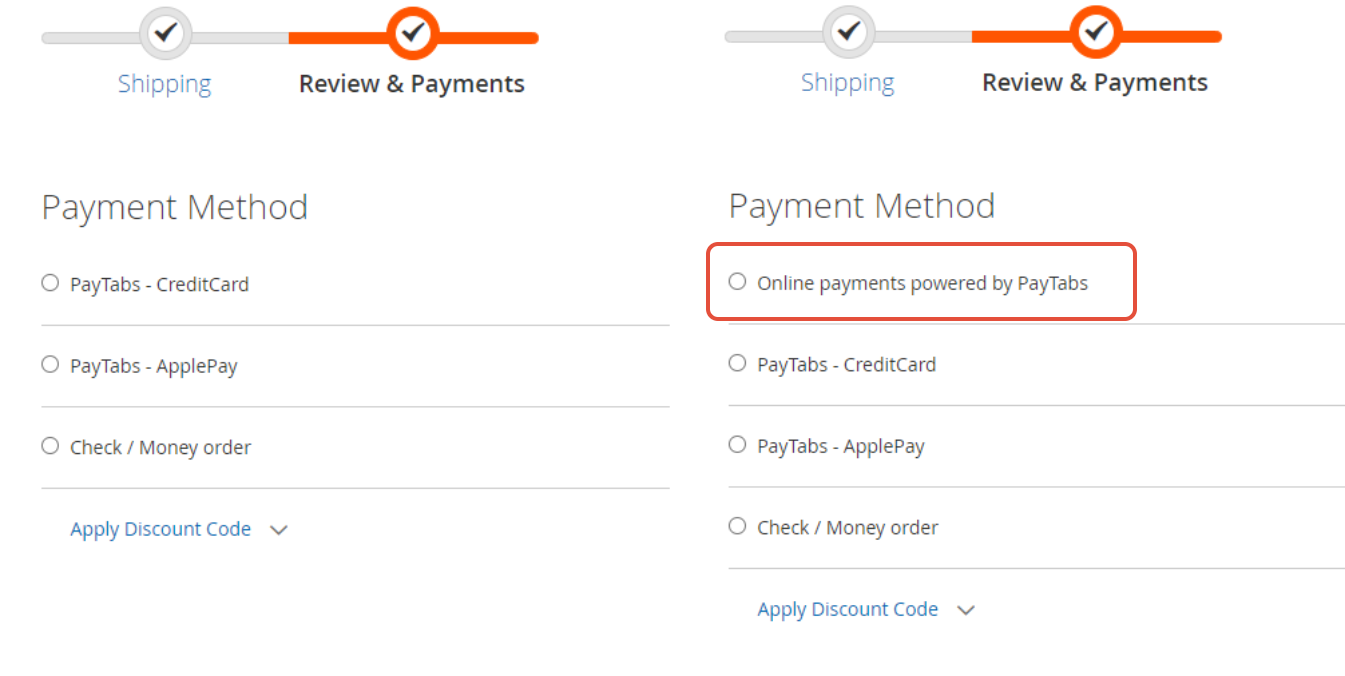
- Payment method now visible on checkout
- Customers can select it as a payment option
- Plugin is ready to accept live payments
Manage the Title on the Checkout Page
Set the display title for this payment method as customers will see it on your website's checkout page.

- Open the payment method configuration
- Locate the Title field
- Enter the title you want customers to see at checkout
- Save — the title now appears on the checkout page
Manage the iFrame Mode
Choose whether to display the PayTabs hosted payment page inside your checkout page, or redirect customers to the external PayTabs payment page.

- Yes — displays the payment page inside your checkout (inner frame); the frame disappears and redirects to the success/cart page after payment
- No — redirects customers to the PayTabs payment page, then back to the return page after payment
- Use system value defaults this option to No
- Not shown for payment methods that don't support iFrame mode, such as Apple Pay
Payment Currency
Control which currency is used to accept payments on your checkout page.

- Base Currency — always uses your Magento store's base currency for payment
- Order Currency — uses whichever currency the customer selected via the store's currency picker
- Use system value defaults this option to Base Currency
- Base Currency is recommended, since order-currency conversion can drift from the actual exchange rate
Allow IPN Notifications
Synchronize order events between your PayTabs account and your Magento store using Instant Payment Notifications.

- Yes — synchronizes Capture, Void, Full Refund and Partial Refund events between PayTabs and Magento automatically
- Requires registering an IPN URL in your PayTabs dashboard with type Default Web
- IPN endpoint: https://plugins.paytabs.com/magento241/paytabs/paypage/ipn
- Activate Capture, Void and Refund events on the IPN for it to function correctly
- No — disables synchronization between PayTabs and Magento
Successful Payment Order Status
Choose which Magento order status should be applied automatically once a payment is completed successfully.
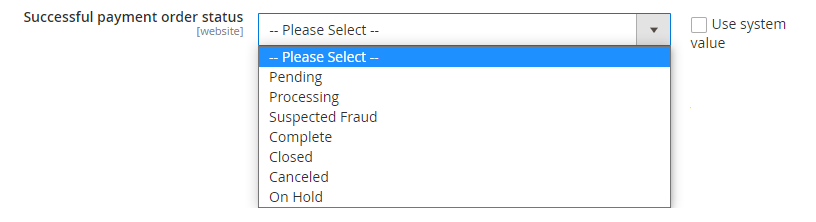
- Pending — order held with no invoice or shipment yet
- Processing — default value; enables Automatically Invoice All Items in Magento
- Suspected Fraud — no invoice issued and no confirmation email sent
- Complete — order successfully created, paid and shipped
- Closed — order refunded via credit memo
- Canceled — set manually, or automatically if payment isn't completed in time
- On Hold — must be set manually
Failed to Pay Order Status
Choose which Magento order status should be applied automatically when a payment fails, is declined, or errors out.
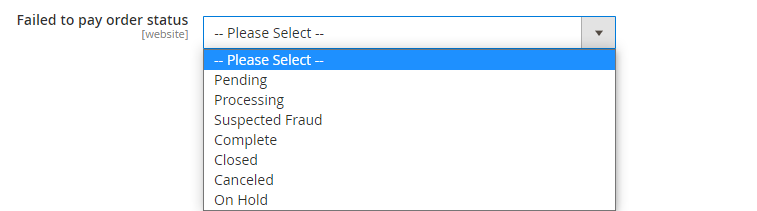
- Canceled — default value for failed payments
- Pending — order held with no invoice or shipment yet
- Processing — enables Automatically Invoice All Items in Magento
- Suspected Fraud — no invoice issued and no confirmation email sent
- On Hold — must be set manually
- Changing the default status affects your Magento order flow, so choose carefully
Re-Fill the Cart if Payment Failed
Control whether a customer's cart is automatically restored if their payment fails.

- Yes — automatically re-fills the customer's cart after a failed payment, saving them the effort of re-adding items
- No — customer's cart is emptied and they must re-fill it manually after a failed payment
Order Confirmation Email
Control when Magento sends the order confirmation email relative to the payment result.

- Do not send an order confirmation email — customers rely on the invoice email instead
- Send order confirmation email if payment succeeds — email is sent only after successful payment
- Use system value — applies Magento's default confirmation email behavior
- Magento creates the order at checkout regardless of payment outcome; only the order status is affected by payment result
Hide Shipping Information
Control whether the shipping and billing information section appears again on the payment page.

- Yes — hides shipping info on the payment page since it was already collected at checkout, saving the customer time
- No — customers must re-enter billing and shipping information on the payment page
- Use system value defaults this option to No
The Payment Method Sorting Order
Set the display order of this payment method relative to other methods on the checkout page.

- Enter a numeric sort order value
- Lower values display earlier in the checkout payment method list
- Use this to prioritize preferred payment methods for customers
Payment Action
Control the transaction type associated with orders paid through this payment method.

- Sale — deducts payment immediately from the customer and credits it to your PayTabs account
- Auth — authorizes and holds the amount on the customer's card, to be captured later manually from Magento Admin or the PayTabs dashboard
- Use system value defaults this option to Sale
- Not shown for payment methods that only operate in Sale mode, such as Mada
Enable Tokenization
Allow customers to securely save their card details for faster future checkouts, ideal for subscription-based businesses.

- Yes — displays a Save to Account option at checkout, letting returning customers skip re-entering card details
- Cards are only saved after a successful payment — failed payments are never saved
- No — customers must enter payment details on every purchase
Payment Page Language
The PayTabs payment page automatically matches either your Magento store's selected language or the customer's browser language.
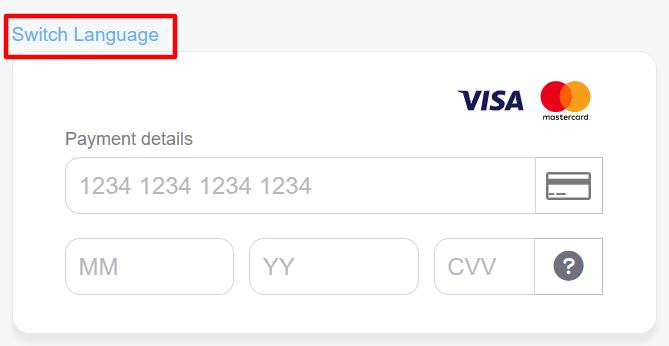
- No manual language selection needed — it's automatic based on store or browser locale
- Customers can still manually change the display language directly on the payment page itself
Collect Payment Before Placing the Order
Change the default order-creation flow so the order is only created after payment is confirmed, instead of Magento's default behavior.

- Yes — the order is created only after payment succeeds; if payment fails, no order is created and the cart remains for the customer to retry
- No — the order is created regardless, and marked with your configured Failed to Pay status if payment fails
- This is a Beta feature — using the default system value is recommended
- Currently available only for PayTabs - All, PayTabs - CreditCard, and PayTabs - valU payment methods
Enable valU Widget
Display the valU installment widget on your product pages to promote buy-now-pay-later options for eligible products.
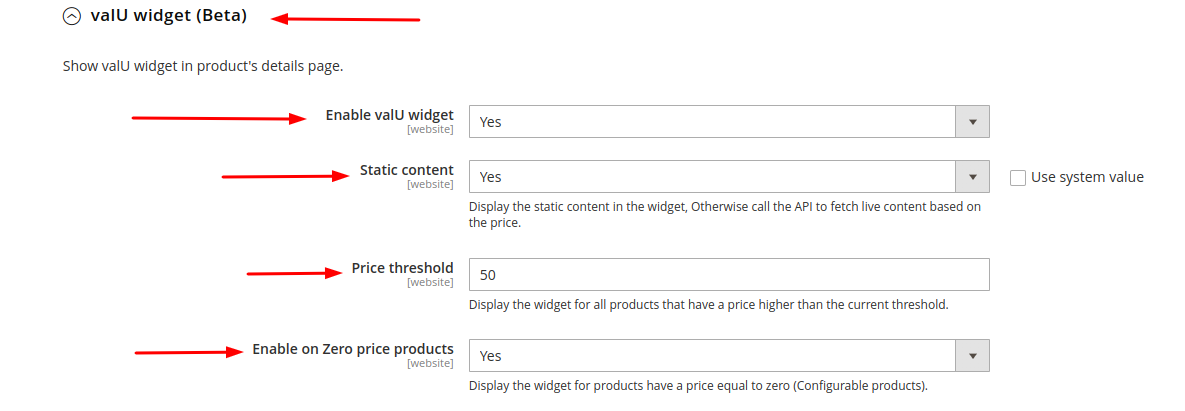
- Enable valU widget — must be set to Yes to activate the widget
- Static content — shows fixed widget content, or calls the API to fetch live pricing-based content
- Price threshold — the widget only displays if the product price exceeds this value
- Enable on zero price products — shows the widget on configurable products priced at zero
- Once configured, the widget appears automatically on eligible product pages
Why Choose Us
Built for Results, Not Just Features
Every aspect of this extension is engineered to drive measurable business outcomes for your store.
Multiple Payment Methods
Accept Credit Card, mada, STCPay, Apple Pay, KNET, Tabby, Tamara & more
Secure & PCI Compliant
Bank-grade security with full PCI DSS compliance and fraud detection
Multi-Region Support
Supports UAE, Saudi Arabia, Kuwait, Oman, Egypt, Jordan and more
Full Refund Control
Full and partial refunds directly from Magento admin panel
Hyvä Compatible
Fully compatible with Hyvä theme out of the box — no extra work needed
Easy Installation
Install via Composer or FTP in minutes with zero coding required
Full Details
Product Description
──────────────────────────────────────────────────────────
INSTALLATION COMMANDS (for the product description body)
──────────────────────────────────────────────────────────
Via Composer:
composer require paytabs/magento2
php bin/magento setup:upgrade
php bin/magento setup:static-content:deploy
php bin/magento cache:clean
Via FTP:
Upload to: app/code/PayTabs/PayPage
Then run the same Magento commands above.
Enable / Disable:
php bin/magento module:enable PayTabs_PayPage
php bin/magento module:disable PayTabs_PayPage
Log file:
var/log/debug_paytabs.log
──────────────────────────────────────────────────────────
PAYMENT METHODS SUPPORTED
──────────────────────────────────────────────────────────
|
Credit Card |
Global |
|
mada |
Saudi Arabia |
|
STCPay |
Saudi Arabia |
|
Apple Pay |
UAE, Saudi Arabia |
|
KNET |
Kuwait (Global endpoint) |
|
KNET Debit |
Kuwait |
|
KNET Credit |
Kuwait |
|
OmanNet |
Oman |
|
Meeza |
Egypt |
|
Meeza QR |
Egypt |
|
UnionPay |
UAE |
|
PayPal |
UAE |
|
Amex |
UAE |
|
Tabby |
UAE, Saudi Arabia (BNPL) |
|
Tamara |
UAE, Saudi Arabia (BNPL) |
|
valU |
Egypt (installments) |
|
Souhoola |
Egypt (installments) |
|
Forsa |
Egypt (installments) |
|
Aman |
Egypt |
|
Aman Installments |
Egypt |
|
Halan |
Egy |
|
Basata |
Egypt |
|
URPay |
Saudi Arabia |
|
Touchpoints |
UAE |
|
TRU |
Egypt |
|
Sadad |
Saudi Arabia |
|
NBE Installment |
Egypt |
Compare Editions
| Feature | Standard | Professional | Ultimate |
|---|---|---|---|
| Credit Card payments | ✓ | ✓ | ✓ |
| mada (Saudi Arabia) | ✓ | ✓ | ✓ |
| STCPay | ✓ | ✓ | ✓ |
| Apple Pay | ✓ | ✓ | ✓ |
| KNET (Kuwait) | ✓ | ✓ | ✓ |
| Tabby (Buy Now Pay Later) | ✕ | ✓ | ✓ |
| Tamara (BNPL) | ✕ | ✓ | ✓ |
| valU installments (Egypt) | ✕ | ✓ | ✓ |
| Iframe mode checkout | ✓ | ✓ | ✓ |
| Vault / tokenization | ✓ | ✓ | ✓ |
| Full & partial refunds | ✓ | ✓ | ✓ |
| IPN callback support | ✓ | ✓ | ✓ |
| Hyvä theme support | ✓ | ✓ | ✓ |
| Multi-currency support | ✓ | ✓ | ✓ |
| Multi-region endpoints | ✓ | ✓ | ✓ |
FAQ
Frequently Asked Questions
The module is fully compatible with Magento 2.4.4 through 2.4.8, including the latest release.
Yes. The module includes a dedicated Hyvä checkout component file (hyva_checkout_components.xml) ensuring full compatibility with Hyvä theme out of the box.
PayTabs supports Credit Card, mada, STCPay, Apple Pay, KNET, OmanNet, Meeza, UnionPay, PayPal, Amex, Tabby, Tamara, valU, Souhoola, Forsa, Aman, Halan, Basata, URPay, Touchpoints and more — covering the full GCC and MENA region.
You can install via Composer by running 'composer require paytabs/magento2', or via FTP by uploading the module to app/code/PayTabs/PayPage. Then run php bin/magento setup:upgrade and cache:clean.
Log in to your PayTabs merchant dashboard, navigate to Developers > Key Management, and copy your Server Key. Your Profile ID is shown on the dashboard home page.
Yes. The module supports Magento Vault (tokenization), allowing customers to securely save their card details for faster checkout on future orders.
Yes. You can enable iframe mode from the payment method settings in Magento admin, allowing the payment page to load inside your store without a full redirect.
Yes. Both full and partial refunds are supported directly from the Magento admin order view for all applicable payment methods.
PayTabs supports endpoints for UAE (ARE), Saudi Arabia (SAU), Kuwait (GLOBAL), Oman (OMN), Egypt (EGY), Jordan, and more through its global endpoint infrastructure.
Yes. IPN callback support is built in. Enable it from the admin config and copy the IPN URL shown there into your PayTabs merchant dashboard.